
Documentation Index
Fetch the complete documentation index at: https://conductor.com/docs/llms.txt
Use this file to discover all available pages before exploring further.
Note: Custom connections with Copilot are currently on pause. Conductor will notify users participating in the alpha when a native app is available in Copilot’s app marketplace
This connection is part of an early access program. Contact your Conductor team to find out whether your account is eligible to participate.Additionally, creating a custom connection to Microsoft’s Copilot currently requires some work in tandem with Conductor’s team. You’ll need to set up a call with us so we can work together to build the connection. Be sure to invite any internal Copilot administrators that have access to approving the creation of new apps in Copilot.
Verify your Copilot plan and permissions
To set up this connection, you will need to have the ability to create Agents in Copilot Studio.Create an agent in Copilot Studio
- In Microsoft’s Copilot Studio, go to the Agents tab.
- At the top, click Create blank agent.
- In the Details section, click Edit and give the agent a name like “Conductor MCP - Copilot” and click Save.
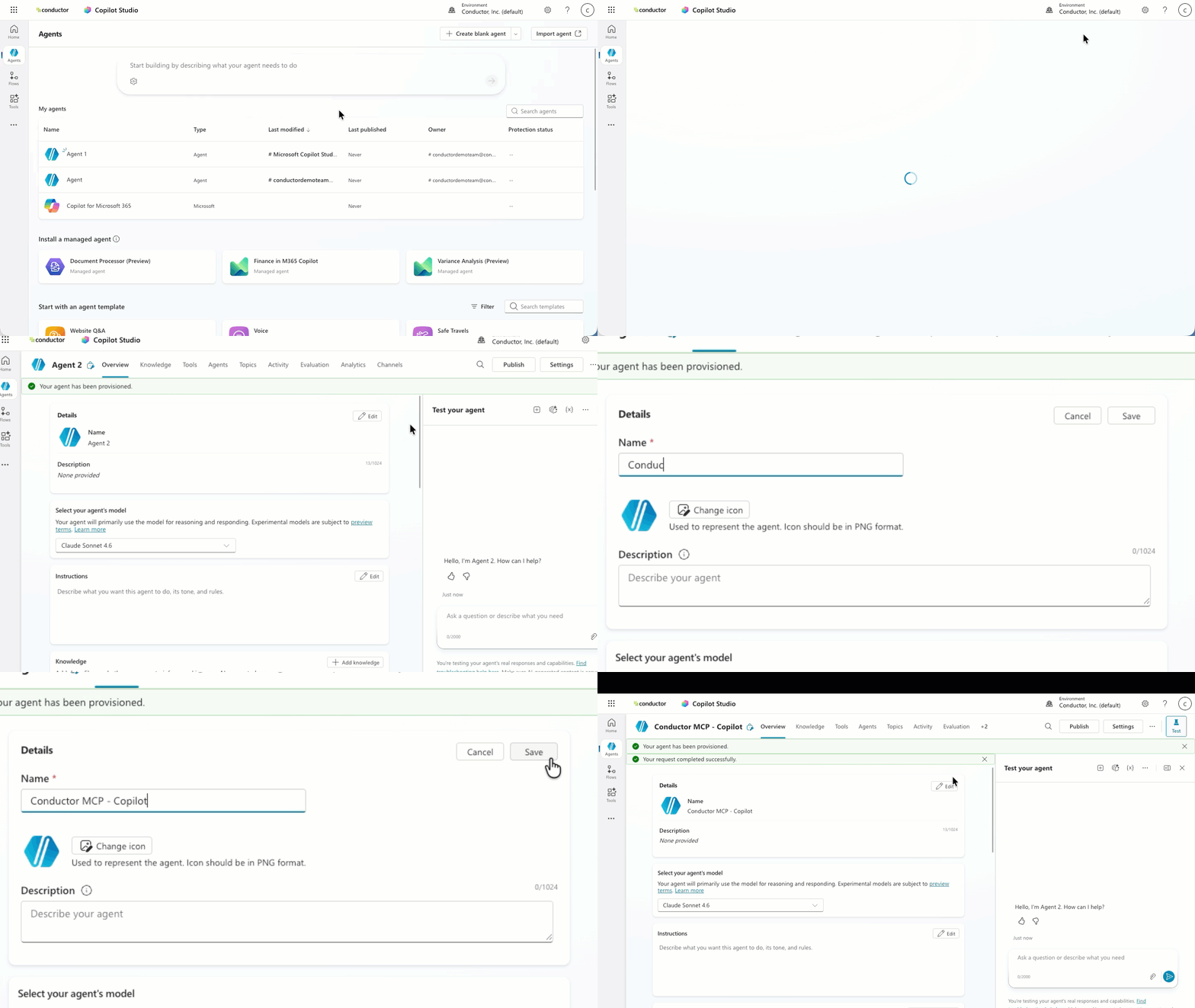
Create a custom connection with Conductor in your agent
- At the top, go to the Tools tab and click Add a tool.
- In the Add tool form, select Model Context Protocol, and enter the following information:
- Server name:
Conductor MCP - Server description:
Provides search data from AI and keyword insights - Server URL:
https://mcp-universal.conductor.com/mcp/v2 - Authentication:
OAuth 2.0
- Type:
Manual - Client ID: [Conductor will provide this value during your setup call]
- Client secret: [Conductor will provide this value during your setup call]
- Authorization URL:
https://auth.conductor.com/oauth2/authorize - Token URL template:
https://prod-conductor.auth.us-east-1.amazoncognitor.com/oauth2/token - Refresh URL:
https://prod-conductor.auth.us-east-1.amazoncognitor.com/oauth2/token - Scopes: [leave empty]
- Redirect URL: [leave empty]

- Server name:
- Click Create. Your agent is created.
- Below the Your tool was created successfully! message, find the Redirect URL. Copy this value and paste it in a safe place—you’ll need to share this with the Conductor team during your setup call.
- Click Next.
- In the Add tool form, click to open the Connection drop-down menu (which should read
Not connected) and select Create new connection.
- Click Create. A Conductor authentication window appears. Use your Conductor credentials to authenticate the connection.

- Back in the Add tool form, click Add and configure. The available tools from Conductor’s MCP now appear for your Agent.

Connect your tool to the agent you created and test
You are now in the settings for your new Tool.- On the right, at the top of the Test your agent sidebar, click the three dots icon (…) and select Manage connections. Your Connections settings for your Agent appear in a new tab.

- Under the Status column for the connection you created for the Conductor MCP, click the Connect link.
- In the Create or pick a connection form that appears, click Submit. Your agent is now connected to Conductor’s MCP server.
- Back in your browser tab with your Agent’s settings for your Tool, use the dialog at the bottom of the Test your agent sidebar to query the Conductor MCP. For example, enter
show me what tools are available.
Publish and add your agent to your organization’s agent store
- Click Publish.
- At the top of your Agent settings, go to the Channels tab.

- Select the Microsoft 365 and Microsoft Teams channel.
- If not selected, select the Make agent available in Microsoft 365 Copilot check box and click Add channel.
- After added, in the Agent preview click Availability options.
- Select Show to everyone in my org, click Submit to org catalog, and confirm that you want to give everyone at your organization access to the agent.
Have users add Conductor MCP app to Copilot from the agent store
To start using the Conductor MCP in Copilot, individual users at your organization must add the Agent you created above to their Copilot accounts.- In Copilot, in the Agents section of the left navigation bar, select the Conductor MCP - Copilot agent (you might need to click All agents to find it).
- Click Add.
Query data with Copilot
- Select the Conductor MCP - Copilot agent from the Agents section of the navigation menu.
- Enter a query.
